Downloading and managing data with MADAS
For our tutorial, we will use data from NOMAD. NOMAD is a free and FAIR online database of materials-science data, including results from both theory and experiments. As such, it is a rich source of data for analytics and machine learning.
NOMAD follows a user-centric approach to data management, allowing users to upload raw data, which is then transformed and archived on the NOMAD platform. As such, it supports many different ways of representing data, including user-defined schemas. This rich metadata is a valuable source for data analytics, as it allows to keep track of the whole provenance of the data, allowing to find and understand outliers and creating trustable results. However, the verbosity of the schemata leads to significant complexity, making it hard to find the relevant information for a given application. Furthermore, the flexible approach of the NOMAD data schema allows that the central database contains different versions of the same schema, based on when the data was processed. While in those cases the data provenance is preserved, bringing the data to an application may require processing of the data before it can be used.
MADAS as a framework allows to connect to the NOMAD API, download data, store it in a local database, apply transformations to the data, and extract the transformed data for downstream applications.
In this tutorial you are going to learn how to:
Let’s get started!
Use an API to download data
First we import the API interface for NOMAD:
[1]:
from madas.apis import NOMAD_API
You can find the full documentation of the NOMAD API class here.
get_calculations_by_search and get_calculation. The former allows to query the NOMAD database and downloading all matching entries as Material objects (see also the documentation here). Materials will be uniquely identified by their entry id.get_calculation can be used to retrieve this entry.[2]:
# Create an API object
api = NOMAD_API()
[3]:
# define the NOMAD query
query = {
    "results.material.symmetry.crystal_system:any": [
      "cubic"
    ],
    "results.method.simulation.dft.xc_functional_type:any": [
      "hybrid"
    ],
    "datasets.dataset_name:any": [
      "Materials Database from All-electron Hybrid Functional DFT Calculations"
    ],
    "results.properties.available_properties:all": [
      "dos_electronic"
    ]
  }
We can test if our query worked by downloading only a single calculation at first:
[4]:
materials = api.get_calculations_by_search(query, max_entries=1)
Found 10 entries
Possibly not all entries discovered due to max_entries limit
Downloading 1 entries
Finished download.
Let’s investigate what we got back from the API:
[5]:
example_material = materials[0]
print(example_material)
Material(mid = 0LFocy2yAB3pqdEz41liXtLWNGvR, formula = Ca, data = {'archive'}, properties = set())
Material reveals some of it’s properties:mid is used to uniquely identify the material. It is obtained from the NOMAD entry id.formula is the reduced formula and can be used as a human readable identifier when working with the data.data attribute contains all data that was downloaded from NOMAD.property attribute is still empty, as it contains properties that are derived from the downloaded data.We can verify that we recieved the same data by creating a link to the NOMAD website with the entry id:
[6]:
print(f"https://www.nomad-lab.eu/entry/id/{example_material.mid}")
https://www.nomad-lab.eu/entry/id/0LFocy2yAB3pqdEz41liXtLWNGvR
We can visualize the unit cell of the material using some untility functions:
[7]:
from madas.plotting import plot_material
[8]:
plot_material(example_material,
              repeat=[1,1,1], # repetitions of the unit cell
              show_unit_cell=2) # show the whole unit cell in the plot
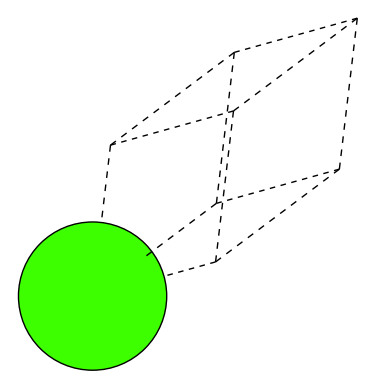
MADAS uses the Atomic Simulation Environment (ASE) for representing atomic structures (and much more). The ase.Atoms object of each Material can be used to extract it directly and get access to many convenient functions of the ase famework.
[9]:
print(type(example_material.atoms))
<class 'ase.atoms.Atoms'>
Let’s inspect the data attibute. For the API, we have recieved the archive as a Python dictinary:
[10]:
print(example_material.data.keys())
dict_keys(['archive'])
Within the archive, we find the information NOMAD has stored about this entry:
[11]:
print(example_material.data['archive'].keys())
dict_keys(['processing_logs', 'run', 'workflow2', 'metadata', 'results', 'm_ref_archives'])
The material properties are currently emtpy:
[12]:
print(example_material.properties)
{}
data and properties attributes of a Material. As an example, we can find the reduced formula in the NOMAD archive.Material object by specifying the path as follows:[13]:
example_material.get_data_by_path('archive/run/0/system/0/chemical_composition_reduced')
[13]:
'Ca'
You can use a different path to extract any information from the data of a Material. Similarly, for properties, Material.get_property_by_path() can be used.
More information on how to work with the NOMAD API most efficiently can be found in the tutorial about using the NOMAD API.
Now, running get_calculations_by_search will return a list of Material objects. To store these on our machine, we will make use of a database.
Store materials data in a local database
First, import the MaterialsDatabase class:
[14]:
from madas import MaterialsDatabase
and create a MaterialsDatabase object. Here we specify the filepath, which tells the database where to store the information on our local machine. Furthermore, we pass it the the NOMAD_API object. Note that the default API of the MaterialsDatabase is also the NOMAD API.
[15]:
db = MaterialsDatabase(filename='materials_database.db', api = api, log_mode='silent')
Initially, the database is emtpy:
[16]:
print(len(db))
0
fill_database will call the get_calculations_by_search function of the NOMAD_API. We therefore pass it the query, and it will automatically download all entries it can find with this query and store them in a local file.[17]:
db.fill_database(query)
Backend class, which can be any type of storage.During the processing of the query, the MaterialsDatabase writes some log entries. These can be very useful for debugging and for finding failing entries when large or long queries are processed. You can set where these messages are written (to the terminal and/or) to file) by using the log_mode attribute when crating the MaterialsDatabase object. You can inspect the log file by using the MaterialsDatabase.log_file_path attribute.
[18]:
with open(db.log_file_path, 'r') as f_: # open the log file for reading
    logfile=f_.readlines() # read the log files line by line

print(''.join(logfile[:5])) # print the last 5 log entries
print('...')
print(''.join(logfile[-5:])) # print the last 5 log entries
2026-04-09 18:32:34,716 - materials_database_log - INFO - Retrieving data...
2026-04-09 18:32:40,698 - materials_database_api - INFO - Found 191 entries
2026-04-09 18:32:40,698 - materials_database_api - INFO - Download data for 191 entries
2026-04-09 18:33:03,804 - materials_database_api - INFO - Finished download.
2026-04-09 18:33:03,805 - materials_database_log - INFO - Got data for 191 entries.

...
2026-04-09 18:33:12,349 - materials_database_api - INFO - Wrote material with id qo3iMLZM-TX3FXLMTOJoW4HCJojV.
2026-04-09 18:33:12,381 - materials_database_api - INFO - Wrote material with id xyQyh8qKd5KUJx75KYtLup9sAvP6.
2026-04-09 18:33:12,414 - materials_database_api - INFO - Wrote material with id AL_NDle5ybphhGeeterPG9tKxshp.
2026-04-09 18:33:12,454 - materials_database_api - INFO - Wrote material with id V4sjmkEC0kBNBsSTpFvzMCHuaMsS.
2026-04-09 18:33:12,488 - materials_database_api - INFO - Wrote material with id UUO7gDxGEe2jLENT_yxR1Ygy8c7A.
After downloading, the database contains all entries that were found:
[19]:
len(db)
[19]:
191
We can get every entry of the database in the order they have been added by using the index:
[20]:
db[0]
[20]:
Material(mid = lYczghNfQInQhaVu7F4TcyaBFPkg, formula = Cd2In4O8, data = {'archive'}, properties = set())
Or by using the mid of the Material object we want to recover.
[21]:
db[db[0].mid]
[21]:
Material(mid = lYczghNfQInQhaVu7F4TcyaBFPkg, formula = Cd2In4O8, data = {'archive'}, properties = set())
When we inspect these material in our database, we see they contain the full archive. However, we want to make the data easier accessible. To do so, we will see next how to manipulate data in the database.
Derive properties in the database
To access properties in the database, we can just iterate over its elements. Because this can take some time, especially for larger databases, we will use tqdm for showing progress bar. MADAS provides a wrapper for tqdm that automatically selects the correct layout of the progress bar, both in a notebook and the command line.
[22]:
from madas.utils import tqdm
Then, we can access the information in each Material. As an example, we will compute the volume of the unit cell using the ase.Atoms objects. Note that this information is also contained in the data property, as NOMAD also computes the unit cell volume.
[23]:
volumes = [] # create an empty list for our volumes
for entry in tqdm(db): # for every entry in the database
    volume = entry.atoms.get_volume() # compute the volume
    volumes.append(volume) # append it to the volume list
Already with this information, we can create a histogram that describes our data. We use matplotlib for the visualization;
[24]:
import matplotlib.pyplot as plt

plt.figure(figsize=(7,4))
plt.hist(volumes, bins=50)
plt.xlabel('Volume [ų]')
plt.ylabel('Count')
plt.show()
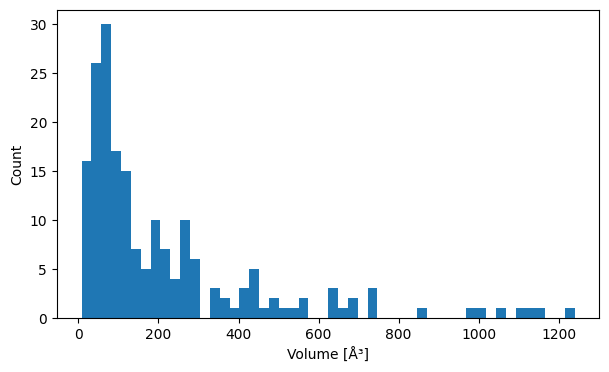
We can see a distribution of volumes with a peak around 100 ų and few entries with higher volumes.
[25]:
from madas.utils import print_key_paths, resolve_nested_dict
print_key_paths, can be used to print all paths that a key in a nested dictionary has. This can help discovering the location of a specific information in the data.[26]:
example_material = db["2KE2kVq3XhM1eU67AsxN890ohcop"]
Then, we search for the band gap in the data of the example material:
[27]:
print_key_paths('band_gap', example_material.data)
/archive/run/0/calculation/0/band_gap
/archive/run/0/calculation/0/dos_electronic/0/band_gap
/archive/run/0/calculation/0/band_structure_electronic/0/band_gap
/archive/results/properties/electronic/band_gap
/archive/results/properties/electronic/dos_electronic_new/0/data/0/band_gap
/archive/results/properties/electronic/band_structure_electronic/0/band_gap
We can use that aggregated data. To do so, we first inspect its contents with resolve_nested_dict, which follows the specified path and returns the data at the end:
[28]:
resolve_nested_dict(example_material.data, 'archive/results/properties/electronic/band_gap')
[28]:
[{'index': 0,
  'value': 2.307134352960001e-19,
  'energy_highest_occupied': -1.07345834478e-18,
  'energy_lowest_unoccupied': -8.427449094839999e-19,
  'provenance': {'label': 'dos',
   'dos': '#/run/0/calculation/0/dos_electronic/0/total/0'}},
 {'index': 0,
  'value': 2.3181573282019203e-19,
  'type': 'direct',
  'energy_highest_occupied': -1.0737309038646226e-18,
  'energy_lowest_unoccupied': -8.419151710444306e-19,
  'provenance': {'label': 'band_structure',
   'band_structure': '#/run/0/calculation/0/band_structure_electronic/0/segment/0'}}]
[29]:
gap_data = resolve_nested_dict(example_material.data, 'archive/results/properties/electronic/band_gap')
Then we compute the gap and transform the unit to eV:
[30]:
from scipy.constants import electron_volt

gap = None
for gap_info in gap_data:
    if gap_info['provenance']['label']=='dos':
        gap = gap_info['value']/ electron_volt
print(gap)
1.4400000000000006
We can write a small function to apply the same transformation to all entries:
[31]:
def get_gap(material) -> float:
    gap_data = resolve_nested_dict(material.data, 'archive/results/properties/electronic/band_gap')
    gap = None
    for gap_info in gap_data:
        if gap_info['provenance']['label']=='dos':
            gap = gap_info['value']/ electron_volt
    if gap is None:
        raise ValueError('Could not find gap from DOS')
    return gap
And extract these values:
[32]:
band_gaps = []
for entry in tqdm(db):
    band_gaps.append(get_gap(entry))
We can plot the data:
[33]:
plt.figure(figsize=(7,4))
plt.hist(band_gaps, bins=50)
plt.xlabel('Band gap [eV]')
plt.ylabel('Count')
plt.show()
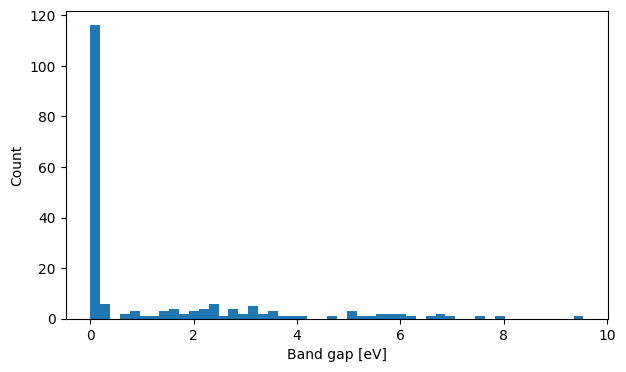
Here we see a large peak for small or no band gap, and a long flat distribution of band gaps up until 10 eV.
Now that we have extacted both volumes and band gaps, we can plot them together:
[34]:
plt.figure(figsize=(7,7))
plt.scatter(volumes, band_gaps)
plt.xlabel('Volume [ų]')
plt.ylabel('Band gap [eV]')
plt.show()
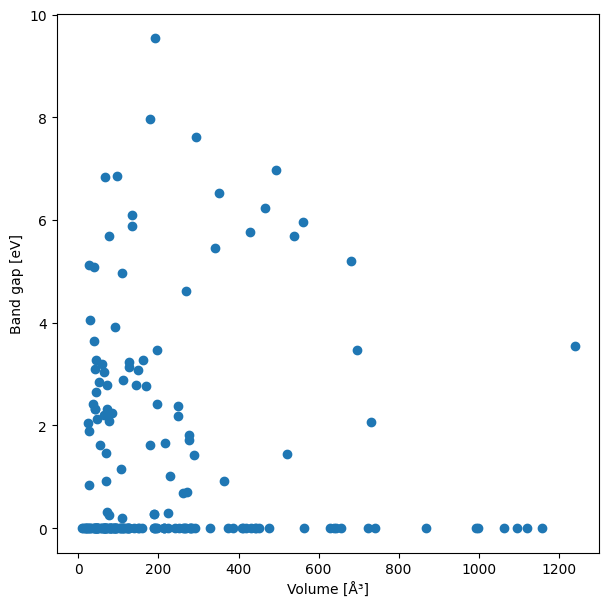
There seems to be not very much correlation between those quantities.
We can derive many useful qantities from the data in our database. But, in some cases, the generation of these quantites may take long, or we want to first create the quantity and then process it further later on, without having to bring the necessary code. For these cases, it is possible to update the data in the database using functions. Here, we will add these two quantites to our database. At the moment, the entries only contain the data we downloaded:
[35]:
print(db[0])
Material(mid = lYczghNfQInQhaVu7F4TcyaBFPkg, formula = Cd2In4O8, data = {'archive'}, properties = set())
We can use the function update_derived_properties of the database to update our entries. It takes a list of property names and a list of functions that are used to derive these properties as inputs.
[36]:
db.update_derived_properties(
    [
        'band_gap',
        'volume'
    ],
    [
        get_gap, # we defined this function above
        lambda entry: entry.atoms.get_volume() # this is a lambda expression
    ]
)
For the band gaps, we use the existing function, for the volume (because it requires very little instructions), we can use a Python lambda expression, i.e., an unnamed function that is defined only where it is executed.
Now, the properties of our entries have been updated:
[37]:
db[0]
[37]:
Material(mid = lYczghNfQInQhaVu7F4TcyaBFPkg, formula = Cd2In4O8, data = {'archive'}, properties = {'volume', 'band_gap'})
For many applications, the data should be available as lists, arrays, or Pandas dataframes. We can extract these from a MADAS MaterialsDatabase.
Retrieve properties
Properties can be retrieved by name:
[38]:
band_gaps = db.get_properties('band_gap')
For dataframes, we can use another function:
[39]:
df = db.get_property_dataframe(['volume', 'band_gap'])
[40]:
print(type(df))
<class 'pandas.core.frame.DataFrame'>
[41]:
df.describe()
[41]:
| volume | band_gap | |
|---|---|---|
| count | 191.000000 | 191.000000 |
| mean | 217.414811 | 1.255602 |
| std | 246.428808 | 2.051329 |
| min | 7.709944 | 0.000000 |
| 25% | 64.001745 | 0.000000 |
| 50% | 114.783390 | 0.000000 |
| 75% | 269.220632 | 2.195000 |
| max | 1240.477268 | 9.540000 |
We can also pass a property or data path to the function to obtain the property directly:
[42]:
db.get_property_dataframe(['volume', 'band_gap', 'archive/results/material/chemical_formula_reduced'])
[42]:
| volume | band_gap | archive/results/material/chemical_formula_reduced | |
|---|---|---|---|
| lYczghNfQInQhaVu7F4TcyaBFPkg | 195.532456 | 2.41 | CdIn2O4 |
| rZF4gjJ48EGz2BBJuuCLJFzkPWVD | 53.789343 | 1.62 | Cu3N |
| Og3YctYdzQznelLm078NKakyvkNO | 44.070003 | 0.0 | CeS |
| luGPZXx92gJIG_ZdF-kw7bY00knV | 178.910746 | 1.61 | Cs3Sb |
| J5MoOxPpWnOl42x2aQJ2Qn_TBVeX | 92.121642 | 0.0 | Ca2H6Ir |
| ... | ... | ... | ... |
| qo3iMLZM-TX3FXLMTOJoW4HCJojV | 95.321992 | 6.86 | BaCl2 |
| xyQyh8qKd5KUJx75KYtLup9sAvP6 | 263.534744 | 0.0 | Be13Ca |
| AL_NDle5ybphhGeeterPG9tKxshp | 29.800045 | 0.0 | CeO |
| V4sjmkEC0kBNBsSTpFvzMCHuaMsS | 87.985549 | 0.0 | Cd3In |
| UUO7gDxGEe2jLENT_yxR1Ygy8c7A | 77.888396 | 0.0 | Ca2Ir |
191 rows × 3 columns